

You set up mailcow. Mail doesn’t arrive. Sounds familiar?
You set up mailcow, uploaded certificates, opened the ports. Sent a test email to yourself on Gmail. The email went to spam, or didn’t arrive at all. Sounds familiar.
The problem is almost never mailcow itself. The problem is the DNS records for your mail domain. Your mail server can be configured perfectly, but if the DNS zone doesn’t tell the rest of the internet “this is a legitimate sender, here are its keys, here’s who can send on its behalf”, you’ll get turned away at the door like a courier without ID.
Here we’ll go beyond the basic A, MX and TXT set that every second article covers. We’ll go through SRV records for automatic mail client setup on Android, Windows and Apple, show which ones actually work and which have been obsolete or never worked as intended.
Example domain used throughout: my-domen.ru. Mail server on mailcow: mail.my-domen.ru. Replace these with your own values everywhere you see them.
What you’ll get at the end: working mail delivery without landing in spam, automatic mail client configuration on the three major platforms with zero clicks from the user (except Apple, covered separately), and a clear picture of what to check when something breaks again.
Total time: 40 minutes to a couple of hours, depending on how fast your registrar propagates zone changes. The slowest part is technically the waiting, not the actual work.
Worth mentioning separately: a common mistake beginners make with self-hosted mail is confusing the domain’s DNS records with the mail server’s own settings. You can configure mailcow perfectly, enable every filter, generate certificates, and mail still won’t work if the external DNS zone doesn’t confirm the server’s legitimacy. In this pair, DNS is the passport, mailcow is the person holding it. Checks at the gate look at the document first, not the reputation.
Second common mistake: testing straight on the production domain without intermediate checks. You change SPF, immediately send a test to Gmail, get spam, panic, roll back the change. The right order is different: check with dig, check with MXToolbox, check with mail-tester, and only then real correspondence with actual people. That saves your nerves and saves someone else’s inbox from test spam.
Reasons why mail doesn’t work right without the full set of records
Seven reasons why mail gets lost, lands in spam, or clients refuse to autoconfigure. Don’t try to fix everything at once, that’s a sure way to lose track of which change actually helped. Go through the list top to bottom, checking with dig after each step.
| Reason | Why it breaks things |
|---|---|
| No MX record or it points to the wrong place | Senders don’t know where to deliver mail for your domain. Mail either doesn’t go out or bounces with error 5.1.2 |
| No SPF record | Any server can claim to be a sender for your domain. Recipients see “unauthorized source” and dump it into spam |
| No DKIM signature | The message can’t be cryptographically confirmed as unmodified. Gmail and Yandex lower sender reputation for this first |
| No DMARC policy | The domain isn’t protected against spoofed emails impersonating it (phishing from an apparently legitimate address) |
| PTR doesn’t match the server name | The reverse zone on the hosting side (not the registrar) must resolve to the same name used in HELO. Otherwise major mail providers (mail.ru, Yandex, Gmail) reject right at the SMTP level |
| No autoconfig SRV records | Thunderbird and mobile clients on Android force users to enter server, port and protocol manually |
| Wrong TTL during migration | Old records stay cached at providers for another day after the change, mail keeps flying to the old server |
Notes for Russian DNS providers
Most DNS-for-mail guides are written with Cloudflare and foreign registrars in mind. Readers in Russia most often run their zone on Reg.ru, Timeweb, Beget or VK Cloud (formerly Mail.ru Cloud Solutions), and these have their own quirks.
In Reg.ru’s panel you can’t always add an SRV record through the standard form, sometimes you need the “Advanced DNS management” section or switching to Reg.ru’s own NS servers instead of delegating to hosting. In Timeweb, SRV records are available directly in the domain’s “DNS records” section, with the standard input format: priority, weight, port, value in separate fields.
If the zone is delegated to Cloudflare (common when the website runs through Cloudflare CDN while mail runs separately on its own server), keep all mail-related records in DNS-only mode (grey cloud), don’t proxy them. An orange cloud on MX or autodiscover records breaks SMTP and HTTPS autoconfig at the same time, because Cloudflare swaps in its own edge IP, and mail protocols don’t pass through the Cloudflare proxy.
VK Cloud and Yandex Cloud DNS support SRV records without restrictions, but in places the interface requires entering the record name fully with a trailing dot (_autodiscover._tcp.my-domen.ru.), otherwise the panel appends the domain twice and you get a broken name like _autodiscover._tcp.my-domen.ru.my-domen.ru. Always verify the final record name with dig right after saving, don’t trust what the panel’s form displays.
Step by step: building the DNS zone for a mail domain
Preparation
Before touching the registrar’s panel, gather three things: access to the domain’s DNS zone, access to the hosting panel or VPS panel (for the PTR record), and admin access to the mailcow web interface.
| Component | Current version at time of publication |
|---|---|
| mailcow: dockerized | 2026-06 (current tag in the repository, check the latest release before installing) |
| Docker Engine | 27.x |
| Docker Compose plugin | 2.29+ |
| Host OS | Ubuntu 24.04 LTS / Debian 12 |
This version was current at time of publication. Check the latest releases on GitHub mailcow-dockerized before installing.
Step 1. A record: mail server address
The first thing any mail client or other server needs to resolve is the IP address of your mail host. Without the A record, everything else is pointless.
Type: A
Host: mail.my-domen.ru
Value: 203.0.113.10
TTL: 3600
Result: dig mail.my-domen.ru A +short should return the same IP as shown in your hosting panel for this server.
If the server also works over IPv6, add an AAAA record with the same hostname. Some mail providers (Gmail especially) will prefer the IPv6 channel when AAAA is present, and that channel has its own IP reputation, separate from IPv4.
Step 2. PTR record: reverse zone
Important detail: the PTR record is not created at the domain registrar. It’s created on the hosting provider or VPS panel side, because the reverse zone is tied to the owner of the IP address block, not to the domain.
How to check and where to look: in Hetzner Cloud it’s the server’s “Networking” – “Reverse DNS section. In OVHcloud and Vultr it’s the equivalent item in the server’s network settings. Enter mail.my-domen.ru there, wait for it to apply (usually up to an hour).
dig -x 203.0.113.10 +short
The result should be exactly mail.my-domen.ru., with a trailing dot, that’s normal for DNS answers, not a bug.
Step 3. MX record
Type: MX
Host: my-domen.ru
Priority: 10
Value: mail.my-domen.ru
TTL: 3600
Lower priority means more preferred. With a single mail server, keep priority at 10. A second backup server (if you add one later) should get priority 20 or higher.
Step 4. SPF record
SPF (Sender Policy Framework) is a TXT record that lists which servers are allowed to send mail on behalf of your domain.
Type: TXT
Host: my-domen.ru
Value: "v=spf1 mx a -all"
TTL: 3600
mx and a mean “trust the servers listed in this domain’s MX and A records”. The final modifier -all means hard fail for everyone else. The soft version ~all is used during a transition period, but for a production domain keep -all, otherwise SPF works more like a recommendation than a rule.
Step 5. DKIM record
Don’t write the DKIM key by hand. It’s generated in mailcow: Configuration > Configuration & Details > ARC/DKIM keys, select the domain, copy the ready-made TXT record.
Type: TXT
Host: dkim._domainkey.my-domen.ru
Value: "v=DKIM1; k=rsa; t=s; s=email; p=MIIBIjANBgkqh..."
TTL: 3600
The selector dkim in the example above is mailcow’s default, but you can change it in the config. If you change the selector, remember the TXT record name in DNS must match it exactly.
Step 6. DMARC record
Type: TXT
Host: _dmarc.my-domen.ru
Value: "v=DMARC1; p=quarantine; rua=mailto:dmarc@my-domen.ru; pct=100"
TTL: 3600
Start with p=quarantine (suspicious mail goes to spam, not outright rejection), watch the reports for a couple of weeks, and only then switch to p=reject, once you’re sure SPF and DKIM are set up correctly for every legitimate source sending on your behalf (including, say, a CRM or mailing service that sends from the domain).
Step 6.1. MTA-STS and TLS-RPT: for closing out transport encryption
DMARC protects against message spoofing but doesn’t guarantee the message travelled encrypted between servers. That’s what MTA-STS is for: a policy that forbids senders from falling back to unencrypted SMTP when TLS isn’t available.
Setup consists of a TXT record and an HTTPS policy file on a separate subdomain:
Type: TXT
Host: _mta-sts.my-domen.ru
Value: "v=STSv1; id=20260714120000"
TTL: 3600
You also need a file at /.well-known/mta-sts.txt on https://mta-sts.my-domen.ru containing something like version: STSv1, mode: enforce, mx: mail.my-domen.ru, max_age: 604800. For a single mailcow server, the simplest option is to serve that file through the same nginx instance that handles your main domain, in a separate location block.
TLS-RPT adds reporting on how often TLS connections fail:
Type: TXT
Host: _smtp._tls.my-domen.ru
Value: "v=TLSRPTv1; rua=mailto:tls-reports@my-domen.ru"
TTL: 3600
For a single domain with modest mail volume, MTA-STS isn’t critical, but if you work with corporate clients whose contracts spell out transport encryption requirements, this is the first thing their security team will ask about.
Step 7. SRV records for IMAP / POP3 / SMTP autoconfig (RFC 6186)
This is where it gets into territory most articles skip. RFC 6186 describes a standard where a mail client can discover server settings through SRV records, with zero clicks from the user. Thunderbird and the Android client K-9 Mail support this mechanism out of the box.
| Name | Type | Priority | Weight | Port | Value |
|---|---|---|---|---|---|
| _imap._tcp.my-domen.ru | SRV | 0 | 1 | 143 | mail.my-domen.ru. |
| _imaps._tcp.my-domen.ru | SRV | 0 | 1 | 993 | mail.my-domen.ru. |
| _pop3._tcp.my-domen.ru | SRV | 0 | 1 | 110 | mail.my-domen.ru. |
| _pop3s._tcp.my-domen.ru | SRV | 0 | 1 | 995 | mail.my-domen.ru. |
| _submission._tcp.my-domen.ru | SRV | 0 | 1 | 587 | mail.my-domen.ru. |
| _submissions._tcp.my-domen.ru | SRV | 0 | 1 | 465 | mail.my-domen.ru. |
| _sieve._tcp.my-domen.ru | SRV | 0 | 1 | 4190 | mail.my-domen.ru. |
In practice, most clients check records in this order: TLS variants first (993, 587, 465), and only fall back to STARTTLS (143, 110) if those aren’t found. So even if all your traffic goes through TLS ports, keep the STARTTLS records too: some corporate proxies and older Android clients can’t handle direct TLS wrapping and expect STARTTLS negotiation specifically.
Priority and weight in an SRV record only matter if you run several servers handling the same protocol, say a primary and a backup IMAP server. For a single mailcow server always use priority 0 and weight 1, they don’t affect anything except load balancing across multiple hosts.
If POP3 is disabled on your server (and in 2026 disabling POP3 is a reasonable call, IMAP has long been standard), declare that explicitly with a record pointing to a dot instead of a server name. That way clients won’t try to reach a port that doesn’t exist.
Type: SRV
Host: _pop3._tcp.my-domen.ru
Value: 0 0 0 .
Step 8. Autodiscover for Outlook and Windows
Microsoft uses its own Autodiscover protocol, not RFC 6186. You need two elements: a CNAME record and an SRV record pointing to the autodiscover server.
Type: CNAME
Host: autodiscover.my-domen.ru
Value: mail.my-domen.ru.
TTL: 3600

Type: SRV
Host: _autodiscover._tcp.my-domen.ru
Priority: 0
Weight: 1
Port: 443
Value: mail.my-domen.ru.
When adding a mailbox, Outlook will query https://autodiscover.my-domen.ru/autodiscover/autodiscover.xml, and mailcow answers that request itself: the autodiscover.php file is already built into the distribution and works out of the box, no extra steps needed on the server.
Step 9. Autoconfig for Thunderbird and Android (K-9 Mail, FairEmail)
Mozilla came up with its own mechanism slightly before the official RFC, and it’s still alive. You need a CNAME record on the autoconfig subdomain.
Type: CNAME
Host: autoconfig.my-domen.ru
Value: mail.my-domen.ru.
TTL: 3600
Thunderbird will query https://autoconfig.my-domen.ru/mail/config-v1.1.xml, and mailcow returns a ready-made XML with all IMAP and SMTP parameters. Android mail clients that respect the Mozilla ISP database (K-9 Mail, FairEmail) use the same path.
The built-in Gmail client on Android doesn’t support autoconfig for third-party domains at all, period. You’ll have to enter server, port and protocol manually on first setup, that’s a limitation of the app itself, not your DNS zone.
Step 10. Apple Mail: why DNS is powerless here
Time to bust a myth that keeps getting repeated article after article: Apple Mail reads neither RFC 6186 SRV records, nor Autodiscover, nor Autoconfig. None of it. iOS and macOS Mail expect either manual entry or a ready-made .mobileconfig configuration profile, signed and installed on the device.
mailcow can generate such a profile itself, in SOGo webmail > Settings > Mail > Mobile config, which produces a ready file that the user downloads through Safari on iPhone and installs as a profile. Server, ports, and TLS protocols are already set inside, no manual entry needed, but this isn’t DNS autoconfig, it’s a separate offline mechanism.
If you manage a corporate fleet of Apple devices, you can push the profile through MDM (Apple Business Manager, Jamf, Mosyle) instead of manual installation by each employee. For one or two mailboxes, it’s simpler to just send a link to the mobileconfig file.
Architecture: how a client finds its settings automatically
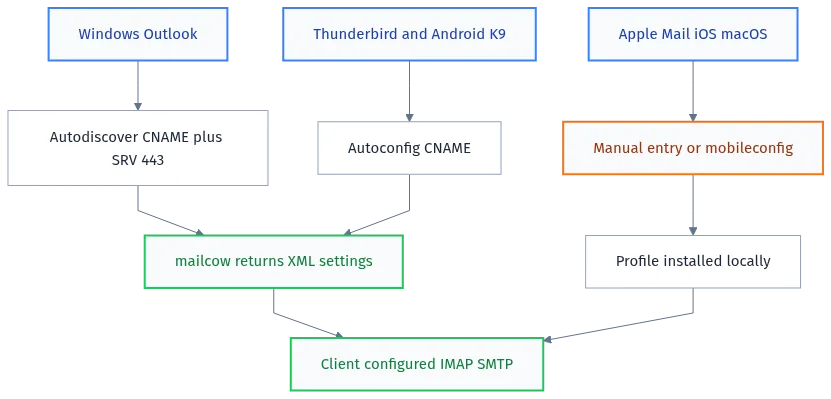
Mail server port table
| Port | Protocol | Purpose | Exposed externally |
|---|---|---|---|
| 25 | SMTP | Receiving mail from other servers | Yes |
| 465 | SMTPS | Sending mail from a client (TLS from the start) | Yes |
| 587 | Submission | Sending mail from a client (STARTTLS) | Yes |
| 143 | IMAP | Reading mail (STARTTLS) | Yes, better to close in favor of 993 |
| 993 | IMAPS | Reading mail (TLS from the start) | Yes |
| 110 / 995 | POP3 / POP3S | Legacy protocol, kept for compatibility | Optional |
| 4190 | ManageSieve | Managing mail filters | Optional, for clients supporting Sieve |
| 443 | HTTPS | SOGo webmail, autodiscover, autoconfig, mobileconfig | Yes |
Verification: making sure everything resolves and works
dig mail.my-domen.ru A +short
dig my-domen.ru MX +short
dig my-domen.ru TXT +short
dig dkim._domainkey.my-domen.ru TXT +short
dig _dmarc.my-domen.ru TXT +short
dig -x 203.0.113.10 +short
dig _autodiscover._tcp.my-domen.ru SRV +short
dig _imaps._tcp.my-domen.ru SRV +short
Each command should return a non-empty response matching what you put into the zone. An empty response means either the record hasn’t propagated through caches yet (wait out the TTL) or there’s a typo in the hostname.
For a full check, don’t rely on dig alone. Run the domain through MXToolbox, it checks MX, SPF, DKIM, DMARC, PTR in one request and shows mismatches in plain language. Separately verify actual delivery through mail-tester.com, send a test message there and get a score from 0 to 10 with a list of specific problems.
| Command | What it shows |
|---|---|
postqueue -p |
Outgoing mail queue on the server (if messages are stuck) |
tail -f /var/log/mail.log |
Live receive/send logs (path depends on distro, in mailcow check the postfix-mailcow container logs) |
docker logs postfix-mailcow --tail 100 |
Postfix logs inside the mailcow container |
It’s also worth checking the message headers after delivery, not just whether it arrived. Open the received message in Gmail via “Show original” or in any other client via view source, and find the Authentication-Results lines. They’ll state plainly spf=pass or spf=fail, dkim=pass or dkim=fail, dmarc=pass or dmarc=fail. This is the fastest way to pinpoint which link failed, instead of guessing from indirect signs like “the message just didn’t arrive”.
If spf=pass but dmarc=fail, it’s almost always alignment between domains. DMARC requires the domain in SPF (return-path) and the domain in the From header to match the organizational domain, not just pass validation independently. If outgoing mail goes through a third-party provider (say, transactional email via SendGrid or Mailgun on behalf of your domain), make sure it’s configured with a custom return-path on your own domain, not the sending provider’s domain.
Common issues: what usually goes wrong
| Error | Cause | Fix |
|---|---|---|
| Mail lands in spam at Gmail | No DKIM signature, or the signature doesn’t match the message body | Check dig dkim._domainkey.my-domen.ru TXT, confirm the key matches what mailcow shows in the interface |
| Error 5.7.1 relay access denied | Postfix doesn’t consider the sender authorized for this domain | Check that the domain is added in mailcow as a “Domain”, not just present in DNS |
| Mail doesn’t reach mail.ru and Yandex | PTR record mismatched or missing | dig -x IP, compare with the server’s HELO name, fix reverse DNS in the hosting panel |
| Outlook doesn’t find settings automatically | Missing CNAME autodiscover or SRV _autodiscover._tcp, or the old record’s TTL hasn’t expired yet | Recreate the records, wait out the TTL, try manual entry once as a workaround |
| Thunderbird offers manual setup instead of automatic | Missing CNAME autoconfig, or the certificate on that subdomain isn’t valid | Check the Let’s Encrypt certificate in mailcow, it should cover both autoconfig and autodiscover subdomains |
| Apple Mail keeps asking for login again | mobileconfig profile wasn’t installed, a plain IMAP account is being used instead | Generate and install the .mobileconfig through SOGo, this fixes most minor sync issues |
| SPF check fails even though the record exists | There are accidentally two TXT records with v=spf1 in the zone (e.g. an old one from a previous host) | Keep exactly one SPF record per domain, DNS can’t merge two policies correctly |
| DMARC reports show fail for valid messages | The message went through forwarding and lost the original SPF envelope | This is expected SPF behavior with forwarding, DKIM should save alignment; if DKIM fails too, check the signature |
| Autoconfig works in the office but not from home | Local DNS resolver caches old records or blocks non-standard SRV queries | Check from a phone on mobile data, if it works there, the issue is the local router or office DNS server |
| After changing the server’s IP, mail still flies to the old address for a day | TTL wasn’t lowered in advance before migration | 24-48 hours before a planned move, lower the record TTL to 300 seconds, switch the IP, restore the TTL after things stabilize |
| MTA-STS policy isn’t picked up by the recipient | mta-sts.txt is served without the correct Content-Type, or the certificate on the mta-sts subdomain doesn’t match the main domain | Check with curl -I https://mta-sts.my-domen.ru/.well-known/mta-sts.txt, confirm a 200 response and Content-Type: text/plain header |
| DKIM signature is valid but mail still lands in spam | The domain is too new, or the IP hasn’t built up reputation yet with that particular recipient | Warm up the IP gradually: small volumes in the first weeks, increasing step by step, instead of a one-time mass mailing from a new server |
It’s not nearly as grim as this list makes it look. It’s a lot simpler if you go in order and don’t mix migration steps with initial setup steps.
Common misconceptions about DNS for mail
Since we’re already busting the myth about Apple and SRV, let’s go through a few more that have been floating around for years.
“SPF works like an IP whitelist, that’s enough without DKIM.” No. SPF checks which IP the message came from, but says nothing about whether the content changed along the way, and doesn’t protect against a spoofed From header during forwarding through an intermediate server. DKIM cryptographically signs the content, DMARC ties both mechanisms into a single policy. Each on its own only covers part of the problem.
“The longer the TTL, the more stable the domain.” A long TTL reduces load on DNS servers but extends any migration and rollback if something goes wrong. For a production zone that doesn’t change for months, a TTL of 3600-86400 seconds is fine. Before planned changes it’s worth lowering ahead of time, not keeping it permanently at the minimum “just in case”.
“Adding every SRV record guarantees autoconfig works for all clients.” No. Outlook ignores RFC 6186 SRV records entirely and only looks at its own Autodiscover mechanism. Apple Mail doesn’t look at any of this. RFC 6186 SRV records are useful only for Thunderbird, K-9 Mail, FairEmail and similar clients that explicitly implement this standard.
“DMARC with p=reject right after setup is correct and safe.” In practice this is a common cause of losing legitimate mail in the first week after launch. Until you’ve seen DMARC reports (rua) showing a consistently zero failure rate from your own legitimate sources for at least two weeks, stick with p=quarantine, or better, start with p=none altogether.
Full zone file: everything in one place
Below is the complete set we went through step by step, assembled into one zone file. Keep such a file next to your backup, so you don’t have to reconstruct it piece by piece from the registrar panel’s change history.
; A and AAAA
mail.my-domen.ru.               IN A     203.0.113.10

; MX
my-domen.ru.                    IN MX 10 mail.my-domen.ru.

; SPF
my-domen.ru.                    IN TXT   "v=spf1 mx a -all"

; DKIM (value shortened, use the real one from mailcow)
dkim._domainkey.my-domen.ru.    IN TXT   "v=DKIM1; k=rsa; t=s; s=email; p=..."

; DMARC
_dmarc.my-domen.ru.             IN TXT   "v=DMARC1; p=quarantine; rua=mailto:dmarc@my-domen.ru; pct=100"

; MTA-STS and TLS-RPT
_mta-sts.my-domen.ru.           IN TXT   "v=STSv1; id=20260714120000"
_smtp._tls.my-domen.ru.         IN TXT   "v=TLSRPTv1; rua=mailto:tls-reports@my-domen.ru"

; Autodiscover (Outlook)
autodiscover.my-domen.ru.       IN CNAME mail.my-domen.ru.
_autodiscover._tcp.my-domen.ru. IN SRV   0 1 443 mail.my-domen.ru.

; Autoconfig (Thunderbird)
autoconfig.my-domen.ru.         IN CNAME mail.my-domen.ru.

; SRV for RFC 6186 (Thunderbird, K-9 Mail, FairEmail)
_imap._tcp.my-domen.ru.         IN SRV   0 1 143 mail.my-domen.ru.
_imaps._tcp.my-domen.ru.        IN SRV   0 1 993 mail.my-domen.ru.
_submission._tcp.my-domen.ru.   IN SRV   0 1 587 mail.my-domen.ru.
_submissions._tcp.my-domen.ru.  IN SRV   0 1 465 mail.my-domen.ru.
_sieve._tcp.my-domen.ru.        IN SRV   0 1 4190 mail.my-domen.ru.

; CAA
my-domen.ru.                    IN CAA   0 issue "letsencrypt.org"

; PTR is set separately, in the server's hosting panel, not here
Keep this kind of file in version control (even a plain git repo with one file works) and commit every change with a clear message. Six months from now, when you have to figure out why something broke again, a dated history of changes will tell you more than trying to remember “I think I touched something in DNS last quarter”.
Alternatives: when building your own DNS zone isn’t worth it
If the goal is just having corporate mail on your own domain without fiddling with manual autoconfig, look at ready-made services: Yandex 360 for Business and Mail.ru for Business give you mailboxes on your own domain, autoconfig on all platforms including Apple through their own mechanisms, and require nothing from you beyond a couple of MX and TXT records at setup.
Self-hosted mailcow makes sense if full control over your data matters, you need integration with internal systems, or regulatory requirements don’t allow storing mail with a third-party provider. Spinning up your own server for two or three mailboxes out of principle is like fixing a fence with a chainsaw. It works, but it’s clearly not the right tool for the job.
There’s a middle ground too: a ready-made mail hosting service like Yandex Mail for domains (free tier for small teams) or Zoho Mail, where the provider handles infrastructure and IP reputation while you only manage users and aliases. For projects where mail isn’t the core product, just a service a team of five to ten people needs, this is often more sensible than running your own mailcow: fewer points of failure, fewer things that can break at 3am and wake up specifically you.
For a corporate fleet of Apple devices, the alternative to manually installing mobileconfig is an MDM solution (Apple Business Manager with Jamf or Mosyle), which pushes the profile automatically on device activation, without user involvement.
One advantage of self-hosted mailcow that rarely gets mentioned: full control over mail retention policy. If internal requirements mandate keeping mail for ten years with no third-party provider able to delete or index it, ready-made SaaS solutions simply don’t fit, regardless of the plan.
Security
- Close off everything except the ports actually used, from the table above, with a firewall (UFW or the one built into mailcow)
- Enable fail2ban for Postfix and Dovecot, it’s already built into mailcow, just check it’s active in the panel
- SSH on the server: key-only, disable root password login
- Start DMARC with
p=noneto collect statistics, then move toquarantine, and only then toreject - Restrict access to the mailcow web interface by IP if the admin panel doesn’t need to be reachable from anywhere
- Add a CAA record restricting which certificate authorities can issue certificates for the domain:
my-domen.ru. IN CAA 0 issue "letsencrypt.org". This won’t stop a targeted attack, but it blocks accidental certificate issuance through a compromised account at some other CA - Use a dedicated database user for mailcow, don’t reuse root MySQL access from other services on the same host
A single drop of carelessness can sink the whole ship. One forgotten mailcow admin panel left open without IP restriction, and you’ve exposed the entire mail domain, including five years of correspondence archives.
Monitoring DNS and domain reputation
DNS records don’t break on their own that often, but registrars occasionally lose records during domain transfers, nameserver changes, or a plain panel glitch. Set up at least basic monitoring that pings you before a client calls asking “what’s up with the mail.
| What to monitor | With what | How often |
|---|---|---|
| MX, SPF, DKIM, DMARC records haven’t changed | A simple cron script with dig and a hash comparison of the output, or a service like UptimeRobot with DNS checks | Every 15-30 minutes |
| Server IP reputation on blacklists | MXToolbox Blacklist Check or the built-in RBL monitor in mailcow | Daily |
| Aggregated DMARC reports | Parsing the XML reports sent to the rua address, manually or through a service like dmarcian | Weekly at launch, then monthly |
| TLS certificate expiration | The built-in acme client in mailcow renews it automatically, but check quarterly that auto-renewal actually worked | Quarterly |
A simple script for checking the MX record, which you can hook into cron and get a Telegram alert on mismatch:
#!/bin/bash
EXPECTED="mail.my-domen.ru."
CURRENT=$(dig my-domen.ru MX +short | awk '{print $2}')
if [ "$CURRENT" != "$EXPECTED" ]; then
  echo "MX record changed: $CURRENT" | \
  curl -s -X POST "https://api.telegram.org/bot/sendMessage" \
       -d chat_id= -d text="ALERT: MX for my-domen.ru is now $CURRENT"
fi
Backup
Back up three things: the mailcow configuration (the entire mailcow-dockerized folder, including .env), mail data (the vmail-vol-1 volume), and the DNS zone itself separately, export the zone file at the registrar after every change.
| What to back up | How often | Where to store it |
|---|---|---|
| mailcow configuration and data | Daily, via the built-in helper-scripts/backup_and_restore.sh |
A separate server or S3-compatible storage, not the same disk |
| DNS zone export | After every record change | A git repository or just a text file with the date in its name |
| DKIM private key | Once at generation, then at every rotation | Encrypted storage, not in plain text on the server’s disk |
Recovery: redeploy mailcow, restore the volume backup through the same helper script with the restore flag, re-upload the saved zone file at the registrar. The DKIM key must match the one in DNS, otherwise all mail starts failing signature checks right after recovery.
Upgrading
Before upgrading mailcow, always check the changelog for changes in DNS requirements, sometimes new mandatory records get added (for example, moving to a new DKIM version or adding MTA-STS). Upgrade through the standard update.sh, not manually via docker compose pull, the script itself checks compose file version compatibility.
If an update changes ports or adds services, test on a staging copy first (or at least read the GitHub issues from the week before the release), then go to production. Rollback uses the same helper script’s restore function, on a backup taken right before the update.
Checklist before handing off to a client
If you’re setting up mail for a client as a consultant rather than for yourself, here’s the final pass before closing the ticket and sending the invoice.
- The mail host’s A record resolves to the correct IP, verified with dig from an external resolver (not from the server itself)
- PTR record is set on the hosting side and matches the server’s HELO name
- MX record points to the mail host, priority is correct
- SPF contains exactly one record per domain, no duplicates left from an old host
- The DKIM key in DNS matches what mailcow shows
- DMARC is set to at least p=none with a working address for rua reports
- SRV records for RFC 6186 are added, POP3 is explicitly disabled with a dot record if not in use
- Autodiscover CNAME and SRV are in place, verified by actually adding a mailbox in a test Outlook instance
- Autoconfig CNAME is in place, verified in Thunderbird
- Mobileconfig profile is generated and tested on at least one iPhone
- A test message has been run through mail-tester.com, score at least 8 out of 10
- The client has been given a summary table of records and an explanation of why each one is needed (not just a list, an actual explanation, otherwise a year from now nobody will know what’s safe to touch)
That last item saves the most time down the road. Without it, a year later someone on the client’s team will spot an unfamiliar SRV record, decide it’s unnecessary, delete it, and autoconfig for new employees will quietly stop working with no error message at all. It just stops, and figuring out why means starting from scratch.
FAQ
Why doesn’t mail work after setting up the MX record?
The MX record only handles routing incoming mail to the server. Sending outgoing mail, passing spam filters, and authorization all depend on SPF, DKIM and DMARC records, plus a correct PTR record. The MX record alone isn’t enough for mail to work properly.
How do I check if autoconfig SRV records are working correctly?
Run dig _autodiscover._tcp.my-domen.ru SRV +short and similarly for the other services. If the command returns a line with priority, weight, port and server name, the record is visible to public DNS. Next, test in the client itself: delete the account and add it again, entering only email and password, with no manual server entry.
What do I do if Apple Mail doesn’t configure itself automatically?
That’s expected behavior, not a bug in your DNS zone. Apple Mail supports neither RFC 6186 SRV records, nor Microsoft Autodiscover, nor Mozilla Autoconfig. You need a .mobileconfig file, which mailcow generates in the SOGo web interface, or manual entry of IMAP and SMTP settings.
How do autoconfig SRV records differ from Microsoft’s Autodiscover?
RFC 6186 SRV records (_imap._tcp, _submission._tcp and others) are an open standard read by Thunderbird and some Android clients directly from DNS. Microsoft’s Autodiscover is Outlook’s own protocol, using a CNAME on the autodiscover subdomain plus a request for an HTTPS XML file from that address, not just a DNS record.
Do I need an AAAA record if the server only works over IPv4?
No, and adding one “just in case” isn’t a good idea. An empty or incorrect AAAA record is worse than having none at all, mail servers will try reaching you over IPv6, get a timeout, and only then fall back to IPv4, wasting time on every single connection.
How long until new DNS records start working?
Depends on the record’s TTL and how fast your registrar publishes changes to authoritative servers. Usually anywhere from 15 minutes to a few hours. Full propagation across every caching resolver worldwide can take up to 24-48 hours, especially if you changed the TTL right before changing the record instead of in advance.
Is MTA-STS mandatory for a small domain?
No, for one or two mailboxes it’s not critical. MTA-STS becomes relevant once your domain works with corporate partners who have strict transport encryption requirements, or once the domain has already faced attempted TLS downgrade attacks.
Why did mail stop working in Cloudflare after enabling the proxy?
Cloudflare’s orange cloud proxies HTTP and HTTPS traffic through Cloudflare edge servers, replacing the real server IP. The MX record and mail-related records (the mail host’s A record, autodiscover, autoconfig) must stay in DNS-only mode, grey cloud, otherwise mail protocols simply can’t reach your server.
Can I use the same mail server for multiple domains?
Yes, mailcow supports multi-domain setups without issues. But each domain needs its own full set of records: its own SPF, its own DKIM selector (or a shared selector with different keys per domain), its own DMARC policy. The only thing domains share is the server’s IP in the A record, and accordingly the PTR record, which is tied to that IP, not to any specific domain. If one of the domains on the server starts sending spam or ends up on a blacklist, the IP’s reputation takes a hit for all domains at once, which is why for important client projects it sometimes makes sense to spread domains across separate outgoing IPs.
Wrapping up
A complete set of DNS records for a mail domain is more than MX and a couple of TXT records checked off a list. It’s A and PTR for basic delivery, SPF, DKIM and DMARC for reputation and anti-spoofing protection, and a separate layer of SRV plus CNAME records for client autoconfig, where for Windows and Thunderbird that layer genuinely works through DNS, and for Apple you just have to accept a manual profile.
Once the whole zone is built and has passed checks through dig and MXToolbox, it’s worth coming back to it a week later and looking at the DMARC reports (rua). That’s where you see the real picture: which servers are sending mail on behalf of the domain, whether they pass SPF and DKIM, and whether there’s a legitimate source you forgot to include in SPF during initial setup (a common case: a forgotten CRM or email marketing service still sending from the main domain, bypassing mailcow).
Something built in a panic during a night shift doesn’t crumble just because you refactor the DNS zone later. If you’ve worked through this once and documented every record with a comment on why it exists, setting up the next domain won’t take more than half an hour.
One last thing worth internalizing: DNS for mail isn’t a one-time setup, it’s a living system you need to keep an eye on. Domains change owners, registrars redesign their panels, standards like MTA-STS appear and gradually become expected by major recipients. Something that worked flawlessly for two years can stop working one day, not because you broke anything, but because requirements on the other end quietly got stricter.
Check every record with dig right after creating it, don’t wait for a user to complain that mail isn’t arriving. If something still doesn’t work after all these steps, leave a comment, we’ll figure it out.

Author: Андрей А.
Оставайтесь на связи
Рецепты от IT-боли. Без воды, без рекламы, без маркетинговой шелухи.
Подписаться на IT-Аптеку →


Поймал странное: на VK Cloud DNS прописалось _submission._tcp с полем приоритета 0, а в веб-интерфейсе стояло 10. Полдня не работало автоконфигурирование в Thunderbird, вручную всё летает. Если домен уже был в зоне другого провайдера, очень помогает перед правкой вывести зону дампа и глазами сверить, как панель сохранила строку. Как вы в таких случаях диагностируете, чтобы не запутаться, где ошибочная запись ушла в кэш резолверов, а где просто панель отдала введённое значение не так, как ожидалось?
У VK Cloud и Yandex Cloud часто путаница с полями SRV: priority и weight в форме могут идти в другом порядке, чем в RFC. Введённое 10 легко уходит в weight, а priority становится 0, Thunderbird тогда игнорирует запись. Проверяю сразу после сохранения так: dig SRV _submission._tcp.my-domen.ru @1.1.1.1 и смотрю, что в первой колонке после IN SRV стоит реальный приоритет, во второй вес, затем порт и хост. Если расходится с задуманным, правлю до тех пор, пока dig не покажет нужный порядок. Плюс если зона делегирована не NS провайдера, а Cloudflare, панель регистратора может держать свою копию записи, которая никак не влияет на резолв. В этом случае смотрю вывод через dig @ns1.cloudflare.com. И отдельно на время миграции снижаю TTL у A, MX и SRV до 300 секунд, тогда ошибочный вариант выветрится из кэша за несколько минут, а не через сутки.
Затык на шаге 6. Где физически взять отчёт DMARC для rua? Свой ящик на mailcow подойдёт как «приёмник», или rua обязательно должен быть на чужом почтовом домене, чтобы Gmail и Яндекс присылали агрегированные XML и им не мешало то, что они шлют отчёт на мой же сервер? И в каком виде их разбирать, чтобы за две недели понять, не поломал ли p=quarantine живой корпоративной переписке?
rua можно повесить на свой ящик, только заведи отдельный адрес вида dmarc@my-domen.ru, не мешай с личной почтой. Формат отчётов у Gmail и Яндекса разный, но оба шлют gzip по RFC 7489: Google-Yandex раз в сутки или раз в несколько часов, файл вложения вида google.com!my-domen.ru!…xml.gz. Читать глазами не надо, ставь paracrawl-dmarc или dmarc-report на тот же сервер, либо разово прогоняй через mxtoolbox DMARC Report Analyzer. Важный нюанс: если SPF проходит через include чужого домена, а ты меняешь p=quarantine, отчёт покажет только источники с двух IP, которые Яндекс считает валидными, остальные просто не появятся в статистике. Проверить проще всего командой dig TXT _dmarc.my-domen.ru +short и сверкой с тем, что реально лежит в панели. Пока в отчётах нет адресов, которых ты не узнаёшь, режект не включай: p=none и pct=100, потом quarantine, и только через месяц p=reject. И да, включи aggregate-отчёты не только на rua, но и на ruf, если нужен forensic, иначе не поймёшь, почему конкретные письма отлетают.