

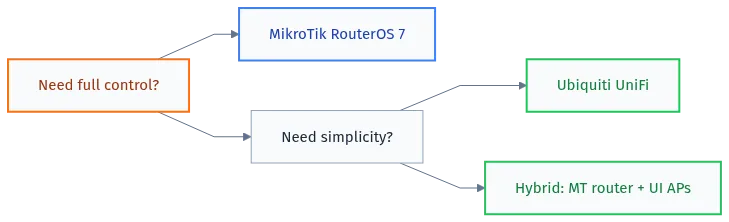
- MikroTik: if you need full control over the network, RouterOS 7, flexible routing, and a budget 2-3 times smaller. Requires an engineer comfortable with Winbox/CLI.
- Ubiquiti UniFi: if you need a polished centralized controller, a fast start, and the ability to hand off management to a non-network person. More expensive, but configured in a single day.
- For a 50-person office: MikroTik RB5009 + CRS switch + Ubiquiti UniFi access points. A hybrid scheme that combines the best of both worlds.
- Current RouterOS version: 7.23 (Stable), 7.21.4 (Long-term), June 2026.
Diagnosis: you’ve been asked to pick hardware for an office
MikroTik vs Ubiquiti. This question comes up every time you need to build a network from scratch or replace an old D-Link with something serious. The task is simple: an office, 50 users, you need switches, access points, and a proper router with a firewall. Budget is tight. Deadline was yesterday.
The internet is full of articles about “which is better, MikroTik or Ubiquiti” with identical tables and identical conclusions like “it depends on your needs.” Thanks, very helpful. This article is different: concrete numbers, a concrete case, and a direct answer to what you should pick for a medium-sized office.
I’ll walk through what actually happened in practice. Not theory from marketing brochures, but real experience deploying a specific network. What broke, what surprised me, what I’d do differently.
What you’ll get from this article:
- A technical breakdown of MikroTik RouterOS 7 against Ubiquiti UniFi on specific parameters
- Real hardware prices for 2025-2026
- A hybrid deployment scheme for an office of 50+ people
- Common mistakes in selection and configuration
- A clear answer: what to buy in your situation
Time required: 15 minutes to read, 1 working day to deploy a network using this scheme.
System requirements
| Parameter | MikroTik RB5009 | Ubiquiti UDM-Pro | Ubiquiti U7 Pro AP |
|---|---|---|---|
| OS / firmware | RouterOS 7.23 (Stable), 7.21.4 (LT) | UniFi OS 4.x | UniFi AP firmware 7.x |
| Power | DC 24V PoE or adapter | 220V, built-in PSU | PoE+ 802.3at |
| Mounting | Desktop / DIN rail | 1U rack | Ceiling bracket |
| Operating temperature | -40 to +70°C | 0 to +40°C | -10 to +70°C |
| Management | Winbox, WebFig, SSH, API | UniFi OS Web UI | Via UniFi Controller |
At the time of publishing, the current versions are RouterOS 7.23 (Stable) and RouterOS 7.21.4 (Long-term). Before installing, check the latest releases at mikrotik.com/download. For UniFi, check the current version at community.ui.com/releases.
Two camps: philosophy against philosophy
Before diving into specs, you need to understand the main point. MikroTik and Ubiquiti aren’t just different brands. They’re two different philosophies of how a network should work.
MikroTik turns you into an engineer. RouterOS gives full access to every parameter: BGP, OSPF, MPLS, firewall with L7-level conditions, traffic shaping on every flow. Want a VRF? Build it. Want SD-WAN over two ISPs with load balancing and failover? Set it up. Want a script in the RouterOS scripting language that recalculates routes at 3 AM on its own? Write it. The flip side: when something breaks, you’re the one debugging it. Documentation exists, but you need to read it carefully.
Over 25 years in networking I’ve watched MikroTik RouterOS turn from a $50 router into a full BGP edge router, an L2TP concentrator for 500 tunnels, or a DHCP server with custom options serving thousands of clients. That’s not marketing, that’s RouterOS. No feature-gated licensing, no extra subscriptions. Buy the hardware, you get everything the OS has to offer.
Ubiquiti UniFi turns a network into an appliance. Spin up the controller, click a few buttons, the network works. Topology visualization, traffic graphs, guest network management in three clicks. Clean. But the moment you need something non-standard, say, DHCP relay paired with a third-party controller, or complex policy-based routing, you quickly hit the ceiling of what UniFi exposes in its interface.
Ubiquiti is evolving too. UniFi OS on the UDM-Pro and UDM-SE has gotten noticeably more capable over the past couple of years. More flexible Traffic Rules showed up, VPN got better, RADIUS was added. But every time you need something complex, you either wait for Ubiquiti to add it to the GUI, or you drop into SSH and hope the next update doesn’t wipe your settings.
Hardware: what exactly we’re comparing
For an office of 50 users you need three components: a router/firewall, a switch, and access points. Let’s break down each category separately.
Routers and firewalls
| Parameter | MikroTik RB5009UG+S+IN | Ubiquiti UDM-Pro |
|---|---|---|
| CPU | AL21400 Cortex-A72, 1.4 GHz, 4 cores | Cortex-A57, 1.7 GHz, 4 cores |
| RAM | 1 GB DDR4 | 4 GB DDR4 |
| Ports | 8x GbE + 1x SFP+ | 1x WAN GbE + 1x WAN SFP+ + 8x LAN GbE + 2x SFP+ |
| NAT throughput | ~3 Gbps | ~3.5 Gbps |
| IDS/IPS | via third-party packages (Suricata) | built-in, ~750 Mbps with IDS |
| Price (2025-2026) | ~$140-160 | ~$370-420 |
| Controller | not needed (Winbox/WebFig) | built into UDM-Pro |
| Cloud management | MikroTik Cloud (optional) | UI Cloud (requires account) |
For performance, they’re roughly equal for a 50-person office. Real internet bandwidth in that kind of office rarely exceeds 500 Mbps, both will handle it without breaking a sweat.
The price difference is nearly threefold. And that’s just the router.
Switches
| Parameter | MikroTik CRS326-24G-2S+RM | Ubiquiti USW-24-POE |
|---|---|---|
| Ports | 24x GbE + 2x SFP+ | 24x GbE PoE+ + 2x SFP |
| PoE | none (CRS326), present on CRS328 | yes, 95W total |
| L3 routing | full RouterOS | limited |
| VLAN | 802.1Q, full flexibility | via UniFi Controller |
| Management interface | Winbox / SSH / WebFig | UniFi Controller only |
| Price | ~$100-120 | ~$240-280 |
Here’s the nuance. A Ubiquiti switch without a controller is just a box. You can’t fully manage it directly. You need a running UniFi Network Application, either on a UDM-Pro, on a separate server, or in the cloud. MikroTik works standalone with any management tool.
Wi-Fi access points
| Parameter | MikroTik hAP ax3 | Ubiquiti U7 Pro |
|---|---|---|
| Standard | Wi-Fi 6 (802.11ax) | Wi-Fi 7 (802.11be) |
| Bands | 2.4 + 5 GHz | 2.4 + 5 + 6 GHz |
| Max speed | up to 2.4 Gbps | up to 9.3 Gbps |
| Roaming | via CAPsMAN | seamless via controller |
| Management | CAPsMAN (built-in) | UniFi Network Application |
| Price | ~$55-65 | ~$190-230 |
On Wi-Fi, Ubiquiti objectively wins. The U7 Pro with Wi-Fi 7 and a tri-band radio is a different league. CAPsMAN on MikroTik works, but the interface still requires you to understand what you’re doing. Roaming between MikroTik access points can be configured, but not as smoothly as in UniFi.
That’s exactly why a hybrid scheme makes sense: MikroTik where you need routing and firewall, Ubiquiti where you need a solid wireless network.
Architecture: what it looks like in an office
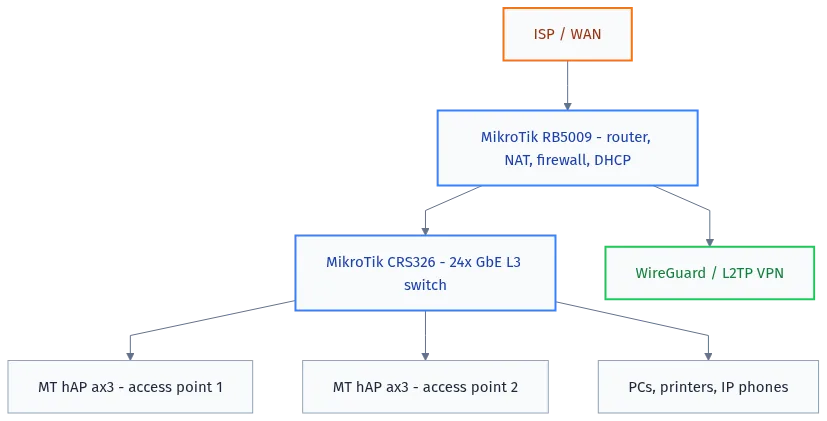
I’ll show two real schemes. First, pure MikroTik. Second, the hybrid I deployed for an office of 52 people.
Scheme 1: Pure MikroTik
Scheme 2: Hybrid (MikroTik + Ubiquiti)
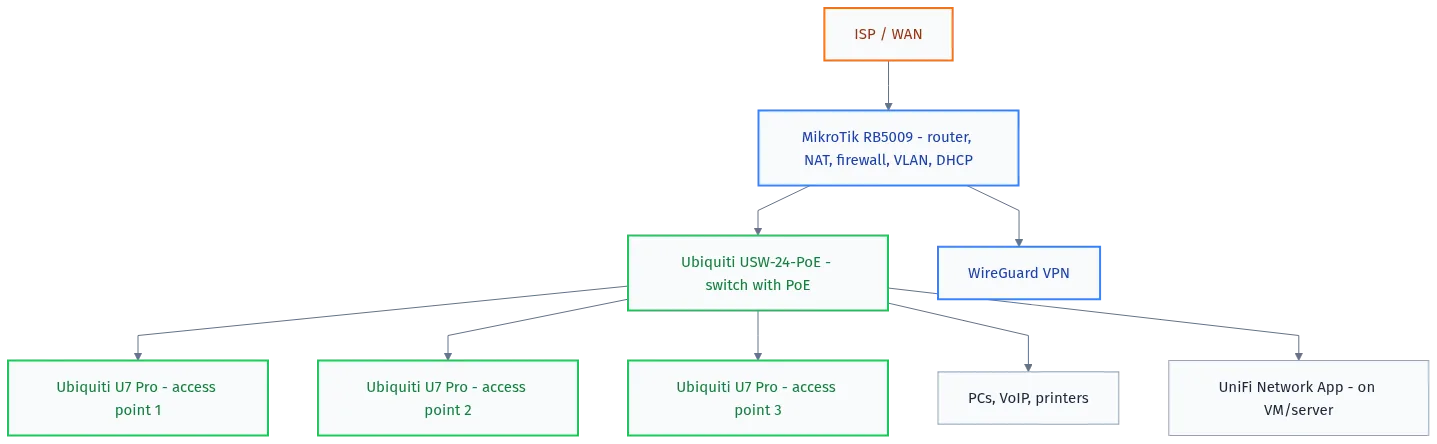
In the second scheme, MikroTik handles all routing and firewall duties, which is its strong suit. Ubiquiti runs the wireless network, which is its strong suit. The UniFi Network Application runs on a separate virtual machine inside the network, with no cloud dependency.
Real numbers: budget for a 50-person office
| Component | Pure MikroTik | Pure Ubiquiti | Hybrid |
|---|---|---|---|
| Router | RB5009: $150 | UDM-Pro: $400 | RB5009: $150 |
| 24-port switch | CRS326: $110 | USW-24-PoE: $260 | USW-24-PoE: $260 |
| 3x access points | 3x hAP ax3: $190 | 3x U7 Pro: $630 | 3x U7 Pro: $630 |
| Wi-Fi controller | built into RouterOS | built into UDM-Pro | VM on an existing server |
| Total | ~$450 | ~$1,290 | ~$1,040 |
The difference between pure MikroTik and pure Ubiquiti is almost $840. With that money you could buy three more switches, a UPS, or a decent virtualization server.
The hybrid scheme costs more than pure MikroTik, but you get proper Wi-Fi 7 and convenient wireless network management. For a modern office where half the staff works off laptops and phones, that’s worth it.
Setup: how hard is it really
MikroTik: first boot
The first thing you see after connecting to a new MikroTik is Winbox. Download it from mikrotik.com/download. Launch it. You’ll see the device in Neighbors. Connect by MAC address, that works without an IP.
# Updating RouterOS to the current version (7.23 Stable, June 2026)
# In Winbox: System -> Packages -> Check For Updates -> Channel: stable -> Download&Install

# Or via CLI (SSH):
/system/package/update/set channel=stable
/system/package/update/check-for-updates
/system/package/update/install
After the update, the default config resets. Basic router setup for an office, WAN port, LAN bridge, DHCP, NAT, firewall, takes about an hour the first time, 15 minutes once you know what you’re doing.
# Basic MikroTik configuration for an office (RouterOS 7.x)
# Assign the WAN port (ether1):
/ip/address/add address=x.x.x.x/xx interface=ether1

# Create a bridge for LAN:
/interface/bridge/add name=bridge-lan
/interface/bridge/port/add bridge=bridge-lan interface=ether2
/interface/bridge/port/add bridge=bridge-lan interface=ether3
# ... add all LAN ports

# IP for LAN:
/ip/address/add address=192.168.10.1/24 interface=bridge-lan

# DHCP server:
/ip/pool/add name=dhcp-pool ranges=192.168.10.100-192.168.10.200
/ip/dhcp-server/add name=dhcp-lan interface=bridge-lan address-pool=dhcp-pool lease-time=1d
/ip/dhcp-server/network/add address=192.168.10.0/24 gateway=192.168.10.1 dns-server=1.1.1.1,8.8.8.8

# NAT masquerade:
/ip/firewall/nat/add chain=srcnat out-interface=ether1 action=masquerade

# Basic input firewall:
/ip/firewall/filter/add chain=input connection-state=established,related action=accept comment="Accept established"
/ip/firewall/filter/add chain=input connection-state=invalid action=drop comment="Drop invalid"
/ip/firewall/filter/add chain=input in-interface=ether1 action=drop comment="Drop all from WAN"
Ubiquiti UniFi: first boot
UniFi Network Application can run on a UDM-Pro (built in) or separately, on a Linux server, Raspberry Pi, or Docker container. For an office I recommend a dedicated VM, that way the controller doesn’t depend on a single device.
# Installing UniFi Network Application on Ubuntu 22.04/24.04
# Current version: UniFi Network 9.x (2026)

# Add the repository:
curl -fsSL https://dl.ui.com/unifi/unifi-repo.gpg | sudo gpg --dearmor -o /usr/share/keyrings/unifi-archive-keyring.gpg
echo "deb [arch=$(dpkg --print-architecture) signed-by=/usr/share/keyrings/unifi-archive-keyring.gpg] https://www.ui.com/downloads/unifi/debian stable ubiquiti" | sudo tee /etc/apt/sources.list.d/unifi.list

# Install:
sudo apt update
sudo apt install unifi -y

# Start and enable autostart:
sudo systemctl enable --now unifi

# Check status:
sudo systemctl status unifi
After that, open a browser, go to https://server-ip:8443, run through the setup wizard. Done. From there, everything is GUI: add access points, create SSIDs, configure VLANs. It genuinely takes a few clicks.
# Check UniFi Network Application ports:
ss -tlnp | grep java

# Controller logs:
tail -f /var/log/unifi/server.log

# Restart:
sudo systemctl restart unifi
Deployment effort comparison
| Task | MikroTik (hours) | Ubiquiti UniFi (hours) |
|---|---|---|
| Initial router setup | 1-3 | 0.5-1 (UDM-Pro) |
| VLAN segmentation setup | 1-2 | 0.5 |
| Configuring 3 access points | 2-4 (CAPsMAN) | 0.5 (via controller) |
| Guest Wi-Fi with isolation | 1-2 | 0.25 |
| VPN for remote employees | 1-2 (WireGuard) | 2-3 (limited VPN) |
| Complex routing / BGP | possible, as much as needed | impossible or very limited |
| Monitoring and alerts | SNMP + Zabbix, manual setup | built into the controller |
VLAN segmentation: how to do it right
For an office of 50 people you need at minimum three VLANs: workstations, wireless devices, equipment management. If you have servers or IP telephony, add separate VLANs for those.
# MikroTik: creating VLANs on a bridge (RouterOS 7)
# VLAN 10 - office PCs
# VLAN 20 - Wi-Fi users
# VLAN 30 - management

/interface/vlan/add name=vlan10-workstations vlan-id=10 interface=bridge-lan
/interface/vlan/add name=vlan20-wifi vlan-id=20 interface=bridge-lan
/interface/vlan/add name=vlan30-mgmt vlan-id=30 interface=bridge-lan

# IP addresses for each VLAN:
/ip/address/add address=192.168.10.1/24 interface=vlan10-workstations
/ip/address/add address=192.168.20.1/24 interface=vlan20-wifi
/ip/address/add address=192.168.30.1/24 interface=vlan30-mgmt

# DHCP for each VLAN:
/ip/pool/add name=pool-vlan10 ranges=192.168.10.100-192.168.10.200
/ip/pool/add name=pool-vlan20 ranges=192.168.20.100-192.168.20.200
/ip/dhcp-server/add name=dhcp-vlan10 interface=vlan10-workstations address-pool=pool-vlan10 lease-time=8h
/ip/dhcp-server/add name=dhcp-vlan20 interface=vlan20-wifi address-pool=pool-vlan20 lease-time=4h
/ip/dhcp-server/network/add address=192.168.10.0/24 gateway=192.168.10.1 dns-server=192.168.10.1
/ip/dhcp-server/network/add address=192.168.20.0/24 gateway=192.168.20.1 dns-server=192.168.20.1

# Block inter-VLAN traffic (if isolation is needed):
/ip/firewall/filter/add chain=forward src-address=192.168.20.0/24 dst-address=192.168.10.0/24 action=drop comment="WiFi cant access workstations"
Firewall and security
MikroTik gives you full control over the firewall. That’s good when you know what you’re doing, and bad when you accidentally delete the accept-established rule and lose access to the device in production on a Friday evening. Speaking from personal experience.
# A reliable baseline firewall for an office (MikroTik RouterOS 7)
# Rule order matters - they're applied top to bottom

/ip/firewall/filter

# INPUT chain - protecting the router itself:
add chain=input connection-state=established,related action=accept comment="Accept established,related"
add chain=input connection-state=invalid action=drop comment="Drop invalid"
add chain=input protocol=icmp action=accept comment="Accept ICMP"
add chain=input src-address=192.168.10.0/24 action=accept comment="Accept from LAN mgmt"
add chain=input src-address=192.168.30.0/24 action=accept comment="Accept from VLAN mgmt"
add chain=input in-interface=ether1 action=drop comment="Drop all from WAN to router"

# FORWARD chain - traffic passing through the router:
add chain=forward connection-state=established,related action=accept comment="Accept established"
add chain=forward connection-state=invalid action=drop comment="Drop invalid"
add chain=forward in-interface=ether1 action=drop comment="Drop unsolicited from WAN"

# Block port scanning:
add chain=input protocol=tcp psd=21,3s,3,1 action=add-src-to-address-list address-list=port-scanners address-list-timeout=2w
add chain=input src-address-list=port-scanners action=drop
Ubiquiti with IDS/IPS enabled on the UDM-Pro handles part of this work automatically. Threat Intelligence signatures update from the cloud. But tuning thresholds and detailed rules is harder than on MikroTik.
Port table (office network)
| Port | Protocol | Purpose | Open externally |
|---|---|---|---|
| 8291 | TCP | Winbox (MikroTik) | No |
| 22 | TCP | SSH management | No (VPN only) |
| 443 | TCP | WebFig / HTTPS | No |
| 8443 | TCP | UniFi Network App | No |
| 3478 | UDP | UniFi STUN | No |
| 10001 | UDP | UniFi device discovery | No |
| 51820 | UDP | WireGuard VPN | Yes |
| 53 | UDP/TCP | DNS | No |
Troubleshooting: what goes wrong
MikroTik: common problems
Problem: Lost access to the router after a firewall rule change
Cause: You deleted or misordered the accept-established rule before the drop-all rule.
Fix: Connect via console cable, or reset the config using the Reset button. Afterward, always use Safe Mode (Ctrl+Q in Winbox) before touching the firewall.
# Safe Mode in Winbox: Ctrl+Q or the Safe Mode button at the top
# In Safe Mode, changes roll back if the connection drops

# Check current firewall rules:
/ip/firewall/filter/print

# Emergency access if you locked yourself out (via another interface):
# Connect through ether2 (LAN) if you only locked out WAN
Problem: CAPsMAN doesn’t see the access points
Cause: APs are on a different VLAN or bridge, CAPsMAN isn’t listening on the right interface.
Fix: Verify that CAPsMAN is enabled and bound to the correct interface.
# CAPsMAN check:
/caps-man/manager/print
/caps-man/interface/print

# Enable CAPsMAN and set the interfaces:
/caps-man/manager/set enabled=yes interfaces=bridge-lan
Problem: DHCP / bridge broke after a RouterOS 7.x update
Cause: RouterOS 7 changed the bridge VLAN filtering model. Old configs can conflict.
Fix: Check the bridge VLAN filtering settings and pvid.
# Check bridge VLAN filtering:
/interface/bridge/print
/interface/bridge/vlan/print

# If vlan-filtering is enabled on the bridge, you need to explicitly list the VLANs:
/interface/bridge/vlan/add bridge=bridge-lan tagged=bridge-lan,ether1 vlan-ids=10,20,30
Ubiquiti UniFi: common problems
Problem: Access point stuck in “Adopting” or “Disconnected” state
Cause: The AP can’t reach the controller. Wrong IP, firewall blocking ports.
Fix: Verify the controller is reachable from the AP’s segment, and that ports 8080, 8443, 3478 are open.
# Resetting a Ubiquiti access point (SSH into the AP):
ssh admin@access-point-ip
# Password - whatever was set in the controller, or ubnt/ubnt if brand new

# Reset and re-adopt:
set-default

# Or set the controller IP manually:
set-inform http://controller-ip:8080/inform
Problem: Some APs stopped working after a firmware update
Cause: Firmware regressions in UniFi are a known issue. The community reports them regularly.
Fix: Roll back to the previous firmware via the controller or SSH.
# SSH into the access point, firmware rollback:
ssh admin@ap-ip
upgrade https://dl.ubnt.com/unifi/firmware/UAP/url-of-specific-version.bin

# Find the URL of the version you need: https://community.ui.com/releases
Problem: UniFi Network Application won’t start after a Java update
Cause: UniFi requires a specific Java version (OpenJDK 17).
Fix: Don’t update Java separately from the UniFi package, use only the official repository.
# Check the Java version UniFi is using:
java -version

# UniFi requires Java 17. If a different version is installed, fix JAVA_HOME:
sudo update-alternatives --config java

# Logs for diagnostics:
sudo journalctl -u unifi -n 100 --no-pager
Upgrading hardware
MikroTik: updating RouterOS
# Current RouterOS channels (June 2026):
# Stable: 7.23
# Long-term: 7.21.4
# Recommendation: Stable for new deployments, Long-term for production

# Update via Winbox: System -> Packages -> Check For Updates -> Channel: stable

# Via CLI:
/system/package/update/set channel=stable
/system/package/update/check-for-updates
# Response: current-version: 7.x.x, latest-version: 7.23.x
/system/package/update/install
# The router will reboot automatically

# Verify after the update:
/system/resource/print
/system/routerboard/print
Ubiquiti: updating the controller and APs
# Updating UniFi Network Application:
sudo apt update
sudo apt install --only-upgrade unifi -y
sudo systemctl restart unifi

# Updating AP firmware via the controller:
# Devices -> select AP -> Settings -> Upgrade

# Rollback via CLI if firmware broke the AP:
ssh admin@ap-ip
# Check version:
info
# Roll back to the previous version:
upgrade http://url-of-previous-firmware/firmware.bin
Monitoring
MikroTik gives you SNMP and The Dude (their own monitoring tool) out of the box. For serious monitoring, people usually set up Zabbix or Grafana + SNMP. That works well, but requires a separate server and configuration.
# Enable SNMP on MikroTik:
/snmp/set enabled=yes
/snmp/community/add name=public addresses=192.168.30.0/24 read-access=yes

# Enable logging to a syslog server:
/system/logging/action/set remote number=3 remote=192.168.10.50 remote-port=514
/system/logging/add action=remote topics=critical,error,warning prefix=office-rt

# Test SNMP:
snmpwalk -v2c -c public 192.168.10.1 .1.3.6.1.2.1.1
Ubiquiti UniFi has built-in dashboards in the controller. Traffic graphs, device status, alerts, all right there. For a small office that’s usually enough. If you want Grafana on top, there’s an unofficial API and exporters for Prometheus.
Configuration backup
For MikroTik, back up the config to a file and export it to text format. The distinction matters: backup restores fully onto the same hardware, export is readable text you can apply to a different device.
# MikroTik: create a backup:
/system/backup/save name=office-rt-backup

# Export config to text (readable, portable):
/export file=office-rt-config

# Download files from the router via Winbox: Files -> Download
# Or via FTP/SCP:
scp admin@192.168.10.1:/office-rt-config.rsc ./

# Automatic backup via scheduler:
/system/scheduler/add name=weekly-backup interval=7d on-event="/system/backup/save name=auto-backup" start-time=02:00:00
# Ubiquiti: backup via the controller
# Settings -> System -> Backup -> Create Backup

# Via CLI (UniFi Network Application):
curl -sk -b cookies.txt -c cookies.txt -X POST \
  -H 'Content-Type: application/json' \
  -d '{"cmd":"backup"}' \
  https://localhost:8443/api/s/default/cmd/backup
Alternatives: what else to consider
| Vendor / product | Who it’s for | Pros | Cons |
|---|---|---|---|
| pfSense / OPNsense | Those who want an open source firewall | Free, powerful firewall, Suricata IDS | Needs a separate server, no vendor hardware under $200 |
| Cisco Meraki | Enterprise segment | Cloud management, reliability | Very expensive, subscription mandatory |
| TP-Link Omada | Small business, tight budget | Cheaper than UniFi, free controller | Fewer features, weaker in the enterprise segment |
| FortiGate | When you need an enterprise firewall | FortiOS, UTM, SD-WAN | Expensive update subscriptions |
| Aruba Instant On | Office without dedicated IT | Simplicity, mobile app | Limited flexibility |
TP-Link Omada is worth a look if the budget is tight and you don’t have time to deal with MikroTik. Feature-wise it’s close to UniFi, but cheaper. For an office of 20-30 people it’s plenty.
A typical day with MikroTik: what you actually do
To give you a sense of how hard it really is to work with MikroTik day to day, here are typical tasks that come up in an office.
Blocking a specific website: two options, via DNS (add a record that resolves the domain to 0.0.0.0) or via a firewall address-list. The DNS option is simpler and works for most cases.
# Block a domain via DNS on MikroTik:
/ip/dns/static/add name=bad-site.com address=0.0.0.0 ttl=5m

# Block via firewall (more reliable if a different DNS is being used):
/ip/firewall/address-list/add list=blocked-sites address=bad-site.com
/ip/firewall/filter/add chain=forward dst-address-list=blocked-sites action=drop comment="Block bad sites"
Checking who’s currently on the network: one command.
# Current DHCP leases (who's online):
/ip/dhcp-server/lease/print

# Who's using the most traffic right now:
/ip/firewall/connection/print stats

# Top connections by traffic:
/tool/torch interface=bridge-lan
Giving temporary access to a contractor: add a static DHCP lease with a specific IP, create a temporary firewall rule for that IP, remove it afterward.
# Static IP for a specific MAC:
/ip/dhcp-server/lease/add mac-address=AA:BB:CC:DD:EE:FF address=192.168.10.150 server=dhcp-lan comment="Contractor temp"

# Limited access only to the servers you need:
/ip/firewall/filter/add chain=forward src-address=192.168.10.150 dst-address=192.168.10.10 action=accept comment="Contractor to file server"
/ip/firewall/filter/add chain=forward src-address=192.168.10.150 action=drop comment="Block contractor rest"

# Remove when no longer needed:
/ip/dhcp-server/lease/remove [find mac-address=AA:BB:CC:DD:EE:FF]
/ip/firewall/filter/remove [find comment~"Contractor"]
All of this is also possible on Ubiquiti, but through the controller GUI, there’s Client Groups, Traffic Rules, Fixed IP for clients. Easier to click buttons, harder to write scripts.
This is actually where the MikroTik scripting language gives you a real edge. You can write a script that enables a slow-internet mode for the guest network at 6 PM, and lifts the limit at 9 AM. Or a script that sends a Telegram notification whenever a new MAC address shows up. Automation at any level.
Security: what you absolutely should do
Regardless of vendor choice, there’s a minimum security checklist for an office network.
| Task | MikroTik | Ubiquiti UniFi | Priority |
|---|---|---|---|
| Change default passwords | /user set admin password= | Via GUI on first login | Critical |
| Close Winbox from WAN | Firewall rule drop 8291 from WAN | Not applicable | Critical |
| SSH only from VPN/LAN | Firewall input | Via UniFi OS | High |
| Disable unneeded services | /ip/service disable telnet,ftp,api | Via Settings | High |
| Firmware updates | Quarterly | Monthly (active development) | High |
| VLAN isolation | Firewall forward rules | Guest Network isolation | Medium |
| Event logging | Syslog to an external server | Built-in controller log | Medium |
| Config backup | Weekly, automatic | Via the controller | High |
# MikroTik: disable insecure services
/ip/service/disable telnet
/ip/service/disable ftp
/ip/service/set api disabled=yes
/ip/service/set api-ssl disabled=yes

# Leave only what's needed (restricted by IP):
/ip/service/set winbox address=192.168.10.0/24,192.168.30.0/24
/ip/service/set ssh address=192.168.10.0/24,192.168.30.0/24
/ip/service/set www-ssl address=192.168.10.0/24

# Set a strong password and disable the default admin:
/user/add name=netadmin group=full password=StrongPassword123!
/user/disable admin

# Enable login attempt logging:
/system/logging/add topics=system,error action=remote
FAQ
Which is better, MikroTik or Ubiquiti, for a small office?
It depends on who’s going to maintain the network. If there’s a sysadmin with RouterOS experience, MikroTik is cheaper and more capable on the routing side. If the network is set up by someone without deep networking knowledge, or you need to quickly hand off management, UniFi is simpler and safer. For office Wi-Fi, Ubiquiti is objectively more convenient regardless of scenario.
Can you use MikroTik as a router with Ubiquiti access points?
Yes, that’s a working and popular setup. MikroTik handles routing, DHCP, NAT and firewall. Ubiquiti APs connect to the switch, and the UniFi Network Application controller runs separately on a VM or in the cloud. MikroTik and UniFi don’t interfere with each other, they operate at different layers of the stack.
Why doesn’t Ubiquiti UniFi work without a controller?
Technically UniFi APs run without a controller in a basic mode, but you can’t manage them, you can’t change the SSID, you can’t set up VLANs. A controller is required for any configuration change. That’s a deliberate design choice by Ubiquiti. The controller can be run locally for free, using the cloud is not mandatory.
How do you verify a MikroTik is correctly configured for an office?
# Check basic configuration:
/ip/address/print           # Addresses on interfaces
/ip/route/print             # Routing table (there should be a default route on WAN)
/ip/firewall/nat/print      # NAT rules (there should be a masquerade rule)
/ip/dhcp-server/print       # DHCP servers
/ip/dhcp-server/lease/print # Issued leases

# Test NAT and routing:
/tool/traceroute address=8.8.8.8

# Test DNS:
/tool/ping 8.8.8.8

# Interface status:
/interface/print
How many users can a MikroTik RB5009 handle?
The RB5009 with RouterOS 7 easily handles an office of 100-200 people under typical load: internet, corporate services, VPN. 4-core ARM Cortex-A72 CPU, around 3 Gbps NAT throughput. Your internet pipe is likely to be the bottleneck before the router itself is. Enabling L7 filtering or deep shaping increases the load, but for 50 users there’s plenty of headroom.
Does Ubiquiti UniFi work in Russia without the cloud in 2025-2026?
Yes, the UniFi Network Application runs fully locally. Deploy it on a Linux server or Raspberry Pi inside the network. Manage it through a browser on a local IP, no internet access required. No UI Cloud account is needed for this. Availability issues with Ubiquiti’s cloud services from Russia don’t affect a local installation.
How does MikroTik differ from Ubiquiti in terms of security?
MikroTik gives you full control over the firewall. You write the rules yourself, configure rate limiting, port knocking, geo-IP blocking via address lists. You can integrate with fail2ban through syslog, or write a script that automatically blocks IPs showing anomalous traffic. Powerful, but it takes knowledge and time to set up.
The Ubiquiti UDM-Pro has built-in IDS/IPS based on Suricata, with a threat signature database that updates from the cloud. Threat Intelligence is a single toggle. With IDS/IPS enabled, throughput drops to around 750 Mbps, which is plenty for a 50-person office. There’s also a Honeypot and integration with UI Teleport for identity-based access.
With careful configuration, MikroTik’s security is comparable or better. Out of the box, Ubiquiti is safer simply because it’s harder to accidentally leave something open. For companies without a dedicated security engineer, that’s a real argument.
Can you manage MikroTik from a phone?
Yes. There’s an official MikroTik app for iOS and Android with basic monitoring and management. For real work it’s more convenient to connect via SSH (Termius or Secure Shell app). WebFig works in a mobile browser. If you want a nice mobile dashboard, set up Zabbix or Grafana with their mobile apps.
For an office with IP telephony or video conferencing, QoS isn’t optional, it’s necessary. When everyone’s on Zoom at once and someone’s pulling a system image from the corporate server in the background, calls turn into underwater robot noises.
MikroTik gives full control over traffic queues. Queue Tree, Simple Queue, Mangle for marking, it’s all there. You can prioritize RTP traffic, cap bandwidth per user, guarantee throughput for critical services.
# MikroTik: basic QoS for VoIP (RouterOS 7)
# Step 1: mark VoIP traffic (RTP UDP 10000-20000)
/ip/firewall/mangle/add chain=prerouting protocol=udp dst-port=10000-20000 action=mark-connection new-connection-mark=voip-conn passthrough=yes
/ip/firewall/mangle/add chain=prerouting connection-mark=voip-conn action=mark-packet new-packet-mark=voip-pkt passthrough=no

# Step 2: Queue Tree for prioritization
/queue/tree/add name="root-queue" parent=global max-limit=100M
/queue/tree/add name="voip-high" parent=root-queue packet-mark=voip-pkt priority=1 max-limit=100M
/queue/tree/add name="default-traffic" parent=root-queue priority=8 max-limit=100M

# Step 3: per-user rate limiting via Simple Queue
/queue/simple/add name="user-limit" target=192.168.10.0/24 max-limit=20M/10M
Ubiquiti UniFi has built-in Traffic Management in the controller. You set priority for traffic types through policies: Voice, Video, Best Effort, Background. Configured via GUI in a few clicks. But if you need detailed control over individual flows or non-standard ports, you’ll hit the ceiling fast.
Bandwidth test: checking throughput
# MikroTik: built-in bandwidth test
# In Winbox: Tools -> Bandwidth Test
# Or via CLI:
/tool/bandwidth-test address=192.168.10.x duration=10

# Check CPU under load:
/system/resource/print

# Top processes:
/system/resource/cpu/print
WireGuard VPN: remote employees
If your office has remote employees who need access to internal resources, WireGuard on MikroTik is fast, modern, and reliable. RouterOS 7 supports WireGuard natively, no extra packages needed.
# MikroTik WireGuard: server setup (RouterOS 7.x)

# Create a WireGuard interface:
/interface/wireguard/add name=wg0 listen-port=51820 mtu=1420

# View generated keys:
/interface/wireguard/print

# Add an IP for the WireGuard interface:
/ip/address/add address=10.0.0.1/24 interface=wg0

# Add a peer (client):
/interface/wireguard/peers/add interface=wg0 public-key="CLIENT_PUBLIC_KEY=" allowed-address=10.0.0.2/32 persistent-keepalive=25

# Firewall: allow WireGuard from outside:
/ip/firewall/filter/add chain=input protocol=udp dst-port=51820 action=accept comment="WireGuard"
/ip/firewall/filter/add chain=input in-interface=wg0 action=accept comment="WireGuard tunnel"

# Routes through WireGuard (for the client):
/ip/route/add dst-address=192.168.10.0/24 gateway=wg0
The client config for Linux/Android/Windows is standard WireGuard. The server listens on UDP port 51820. That port needs to be open in the firewall and forwarded if the MikroTik sits behind carrier NAT.
The Ubiquiti UDM-Pro supports VPN too, but with limited functionality compared to RouterOS. Teleport VPN only works in a cloud pairing with UI Identity. WireGuard was added in relatively recent UniFi OS versions, but it’s configured via GUI without the flexibility of a CLI.
Mobile management: comparing the apps
Sometimes you need to check something without being at your desk. Both vendors have mobile apps, but the level of capability is very different.
The MikroTik app (iOS/Android) gives basic monitoring and Winbox in a browser. It’s not convenient to manage through. The real tool is an SSH client like Termius, or Winbox over RDP. But if you’ve got The Dude or Zabbix set up, monitoring from a phone works fine.
The UniFi Network app (iOS/Android) is a full mobile controller. Status of all devices, online clients, events, alerts, rebooting access points, all available from your phone. For the situation “something’s broken at 10 PM and you’re at home,” this is genuinely convenient. The app works both locally (inside the network) and through the UI cloud.
This is one argument for Ubiquiti that’s hard to ignore. When the office manager texts you on a Sunday saying Wi-Fi is down, you can reboot the access point from your couch without getting up. With MikroTik, the same task requires VPN + SSH + a command.
Scaling: what happens if the office grows
An office of 50 people today might become 150 in two years. A good network should scale without a full redesign.
With MikroTik, scaling is linear. Need more ports? Add a switch and update the config. Need more Wi-Fi coverage? Add an AP into CAPsMAN. Need a second office? Set up WireGuard or OSPF between sites. RouterOS doesn’t gate you with a license on device count.
With Ubiquiti, scaling is easier to manage but more expensive. Adding new APs and switches to the controller is a few clicks. But each new device is $200-300 against $50-100 for MikroTik. Across 10 access points, the budget gap becomes noticeable.
| Growth scenario | MikroTik | Ubiquiti UniFi |
|---|---|---|
| +10 workstations | Add ports on the switch | Same |
| +3 Wi-Fi access points | ~$170-200 + CAPsMAN | ~$620-730 + controller |
| Second office / branch | WireGuard / OSPF, flexible | Site-to-site VPN via UDM, simpler GUI |
| Splitting the network into zones (VLAN) | Full flexibility in RouterOS | Via the controller, but limited |
| Two internet providers | Policy-based routing, failover, load balancing | Dual WAN on UDM-Pro, basic failover |
| BGP / OSPF with the provider | Full support | UDM-Pro only, limited |
Two providers: failover and load balancing
For an office with two internet links, MikroTik is the right call. Policy-based routing, recursive routing for failover, gateway monitoring via netwatch, all done natively.
# MikroTik: failover with two ISPs (RouterOS 7)
# ISP1 - primary (ether1, gateway 1.1.1.1)
# ISP2 - backup (ether2, gateway 2.2.2.2)

# Routes with distance (primary and backup):
/ip/route/add dst-address=0.0.0.0/0 gateway=1.1.1.1 distance=1 check-gateway=ping comment="ISP1 primary"
/ip/route/add dst-address=0.0.0.0/0 gateway=2.2.2.2 distance=2 check-gateway=ping comment="ISP2 backup"

# Netwatch for monitoring ISP1:
/tool/netwatch/add host=8.8.8.8 interval=10s timeout=3s \
  up-script="/ip/route/set [find comment=ISP1-primary] distance=1" \
  down-script="/ip/route/set [find comment=ISP1-primary] distance=3"

# NAT for both providers:
/ip/firewall/nat/add chain=srcnat out-interface=ether1 action=masquerade comment="NAT ISP1"
/ip/firewall/nat/add chain=srcnat out-interface=ether2 action=masquerade comment="NAT ISP2"
When the first link goes down, the router automatically switches to the second. Switchover time is 10-30 seconds depending on netwatch settings. All of this without the cloud, without subscriptions.
The Ubiquiti UDM-Pro supports Dual WAN with failover through the GUI. Easier to configure, less flexibility. Balancing load between providers is harder to set up than on RouterOS.
Buying considerations in Russia
Since 2022, the supply situation for networking hardware has changed. Neither vendor officially ships through direct channels anymore, but both are available through parallel import.
MikroTik is a Latvian company. Hardware is available through resellers, prices are stable. RouterOS support through the forum.mikrotik.com forum is active, though official email support has slowed down.
Ubiquiti is a US company. Availability through parallel import exists, but prices are 20-30% above historical levels. UI cloud services work unreliably from Russia. This matters if you plan to use UI Cloud for management, you’ll need a VPN or a locally-run controller.
Support and community
MikroTik has one of the best technical communities in networking. The forum at mikrotik.com is alive. Online communities are active: habr.com, specialized Telegram channels, YouTube with detailed breakdowns of specific tasks. MTCNA/MTCRE certification is valued by employers.
Ubiquiti Community at community.ui.com is active too. But the tone is different: more bug reports and feature requests, less technical breakdown of how protocols actually work. Reddit’s r/Ubiquiti is its own universe, full of memes about every new update breaking something.
Honestly, MikroTik’s documentation quality is higher. help.mikrotik.com/docs is detailed, current, and full of command examples. Ubiquiti has documentation too, but it sometimes lags behind the actual state of the firmware.
Winbox: a first look for those new to MikroTik
Winbox is a native app for Windows and Linux, the main management tool for MikroTik. Download it from mikrotik.com/download, no installation needed. Launch it, you’ll see devices on the network, connect.
The first time you connect to a new MikroTik, you’ll see the default configuration. On the RB5009 that’s a bridge across the LAN ports, a DHCP server, NAT. Works out of the box, but needs customizing for your specific network.
The Winbox interface looks dated, and it is. But once you get used to it, you realize it’s fine for engineering work. Everything’s in its place, everything’s clickable, changes apply instantly. WebFig, the browser version, looks more modern, but Winbox is faster for daily work.
RouterOS 7.23 brought improvements in WinBox 4.x, a new interface that looks less like Windows XP. If you last touched MikroTik three years ago, take another look, it’s gotten better.
# Useful Winbox hotkeys:
# Ctrl+Q - Safe Mode (changes roll back if the connection drops)
# Ctrl+W - close the current window
# F5 - refresh the list
# Ctrl+Z - undo the last action

# Quick Set - fast router setup for typical scenarios
# Menu Quick Set -> WISP / AP / Home AP / PTP Bridge

# Terminal in Winbox: New Terminal
# All CLI commands are available right from Winbox without SSH
Prevention: so you’re not firefighting
Good network infrastructure doesn’t demand constant attention. Bad infrastructure eats your time every week.
Monitoring: set up at least basic alerts: gateway availability, router CPU load, packet loss percentage. On MikroTik that’s netwatch + syslog to an external server. On Ubiquiti, alerts in the controller plus email notifications.
# MikroTik: basic link availability monitoring
/tool/netwatch/add host=8.8.8.8 interval=30s timeout=5s \
  down-script=":log error \"WAN ping 8.8.8.8 failed - check internet!\""

/tool/netwatch/add host=1.1.1.1 interval=30s timeout=5s \
  down-script=":log error \"WAN ping 1.1.1.1 failed - DNS/internet issue!\""

# Enable email notifications:
/tool/e-mail/set server=smtp.example.com port=587 tls=starttls user=alert@example.com password=yourpassword

# Test email:
/tool/e-mail/send to=admin@example.com subject="MikroTik Test" body="Network alert test"
Regular backups: automatically once a week, plus manually before every config change. The scheduler in RouterOS does this without human involvement. Copy backup files from the router to a separate server, a backup on the same device isn’t a backup.
Updates: don’t update RouterOS on a Friday after 3 PM. Learned the hard way. Update early in the work week, when there’s time to deal with things if something goes wrong. The Long-term branch (7.21.x) is more stable than Stable for production, use it if you don’t need the newest features.
Documentation: record the network diagram, the IP scheme, and any non-standard configurations. A year from now you’ll forget why that one firewall rule on line 47 exists. And whoever comes after you won’t thank you for it. One line of documentation usually saves an hour of debugging.
Summing up: a cheat sheet for choosing
| Criterion | MikroTik wins | Ubiquiti wins | Tie |
|---|---|---|---|
| Hardware price | + | ||
| Configuration flexibility | + | ||
| Deployment speed | + | ||
| Wi-Fi quality | + | ||
| Centralized management | + | ||
| Mobile app | + | ||
| VPN capabilities | + | ||
| Two providers / failover | + | ||
| QoS and traffic shaping | + | ||
| Built-in IDS/IPS | + | ||
| Works without internet | + | ||
| Entry barrier (for a newcomer) | + | ||
| Hardware reliability | + | ||
| Firmware stability | + | ||
| Documentation | + |
By count, MikroTik wins in more categories. But the categories where Ubiquiti wins matter a lot for most office situations. Deployment speed, ease of management, and good Wi-Fi are things you deal with every single day.
The decision comes down to one question: who’s going to maintain the network? If it’s an engineer who knows what BGP is and isn’t scared of a CLI, go MikroTik. If it’s a general-purpose sysadmin, or there’s no dedicated IT person at all, go Ubiquiti.
Practical case: what went wrong
Two specific moments from that office deployment, because theory without practice is just pretty tables.
Moment one: VLAN on the hybrid scheme
Set up MikroTik as the router. Connected a Ubiquiti USW-24-PoE. Created VLANs in RouterOS. Configured a trunk port between the router and the switch. Connected the access points to the switch. Set up an SSID in the UniFi controller with the right VLAN ID.
Devices on wired ports work fine. Devices on Wi-Fi don’t get DHCP. Spent an hour in the logs. Turned out: in UniFi you need to explicitly create a Network with the same VLAN ID as MikroTik, and attach the SSID to that network. Creating an SSID without binding it to a Network defaults to VLAN 1 (untagged). That’s not obvious in the interface.
Fix: in the UniFi Controller, go to Settings -> Networks -> Add Network -> create a VLAN-Only network with the right ID. Then in WiFi -> Add WiFi Network -> Advanced -> Network, select the network you created.
# Verify the VLAN is tagged correctly on the trunk port:
# On MikroTik, check the bridge VLAN table:
/interface/bridge/vlan/print

# Check tagging on a specific port:
/interface/bridge/port/print where interface=ether1

# Capture traffic for diagnostics (MikroTik Packet Sniffer):
/tool/sniffer/set filter-interface=ether1 filter-vlan-id=20
/tool/sniffer/start
# Watch in Tools -> Packet Sniffer -> Packets
Moment two: UniFi after a firmware update
Three months after launch, a firmware update came out for the U6 Pro. Clicked “Update All” in the controller. Two of three APs updated fine. The third got stuck in “Upgrading” for 20 minutes, then switched to “Disconnected.”
Physically nothing wrong, the AP is powered on, blinking. But the controller can’t see it.
# Diagnosing a Ubiquiti access point not responding after an update:
# Ping the AP:
ping access-point-ip

# If ping works, SSH into the AP:
ssh admin@access-point-ip

# Check firmware version:
info

# If the firmware rolled back to a very old version, update it manually:
upgrade https://dl.ui.com/unifi/firmware/U6-Pro/SPECIFIC-VERSION.bin

# If the AP doesn't respond over SSH, physical reset:
# Hold the Reset button for 10 seconds until the LED blinks
# After the reset the AP returns to factory defaults
# Then set-inform from the controller, or the Adopt button in UniFi
The problem was fixed with a physical reset and re-adoption. Lesson learned: update APs one at a time, not all at once.
Integration with Active Directory and RADIUS
A corporate office often needs Wi-Fi authentication tied to a corporate account. No password-on-a-sticky-note, no password that the whole company including people who left six months ago still knows.
MikroTik supports RADIUS authentication at the router level and through CAPsMAN for access points. It pairs with FreeRADIUS or NPS (Windows Network Policy Server).
# MikroTik: setting up a RADIUS client for WPA2-Enterprise
/radius/add service=wireless address=192.168.30.10 secret=radius-secret authentication-port=1812 accounting-port=1813

# In CAPsMAN, bind RADIUS to a security profile:
/caps-man/security/add name=corp-wifi authentication-types=wpa2-eap eap-methods=tls radius-called-id=Corp-WiFi
/caps-man/configuration/add name=corp ssid=Corp-WiFi security=corp-wifi

# Test connectivity with the RADIUS server:
/radius/test secret=radius-secret src-address=192.168.10.1
Ubiquiti UniFi supports WPA2/WPA3-Enterprise via RADIUS the same way, but configured through the controller GUI. Settings -> Profiles -> RADIUS Profiles -> Add. You enter the RADIUS server address and secret there. Then in the SSID settings, pick Enterprise security and the profile you created.
On RADIUS capability, it’s a tie. On ease of setup, Ubiquiti is simpler. But both work.
Guest network: isolation and captive portal
A guest Wi-Fi for visitors is a required part of an office network. Guests should get internet, and no access to internal resources.
On Ubiquiti UniFi, setting up a guest network takes 5 minutes: create a new Network with type Guest, create an SSID, and bind it to that network. Isolation from the main network is one checkbox. Captive portal with a custom page is also GUI-based. Genuinely convenient.
# MikroTik: guest network with isolation (via a separate VLAN)
# VLAN 100 - guest network

/interface/vlan/add name=vlan100-guest vlan-id=100 interface=bridge-lan
/ip/address/add address=192.168.100.1/24 interface=vlan100-guest
/ip/pool/add name=pool-guest ranges=192.168.100.10-192.168.100.100
/ip/dhcp-server/add name=dhcp-guest interface=vlan100-guest address-pool=pool-guest lease-time=2h
/ip/dhcp-server/network/add address=192.168.100.0/24 gateway=192.168.100.1 dns-server=8.8.8.8

# Isolation: guests only reach the internet, not the local network:
/ip/firewall/filter/add chain=forward src-address=192.168.100.0/24 dst-address=192.168.0.0/8 action=drop comment="Block guest to local"
/ip/firewall/filter/add chain=forward src-address=192.168.100.0/24 out-interface=ether1 action=accept comment="Allow guest to internet"

# Optionally: captive portal via Hotspot:
/ip/hotspot/setup interface=vlan100-guest
On MikroTik this is a bit more involved than UniFi, but it works reliably. Hotspot lets you add a login page with terms-of-use acceptance.
Decision summary: a decision tree
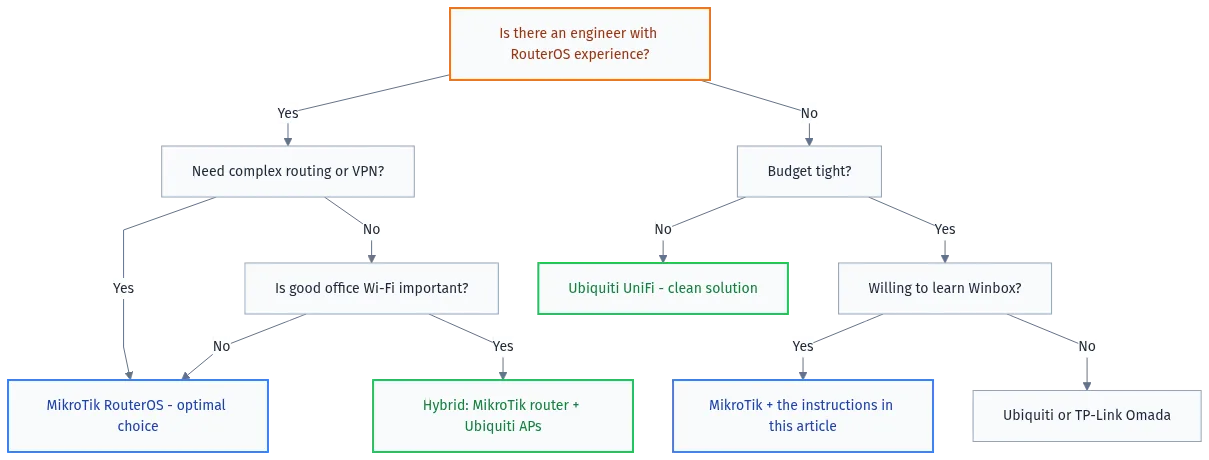
Comparison by business type
| Type of company | Recommendation | Why |
|---|---|---|
| Startup, 10-20 people | Ubiquiti or Omada | Launch speed matters more than flexibility, no dedicated network engineer |
| Office of 50-100 people, IT team exists | Hybrid MikroTik + Ubiquiti APs | Optimal balance of price and functionality |
| Manufacturing / warehouse | MikroTik | Needs custom routing, VLANs for IoT devices, budget |
| Hotel / hostel | Ubiquiti UniFi | Guest Wi-Fi, captive portal, good coverage, simplicity |
| ISP / provider | MikroTik | BGP, MPLS, PPPoE server, scale, price |
| Medical facility | Verify compliance requirements first, then MikroTik | Network isolation, auditing, local management without the cloud |
| Retail / storefront | Ubiquiti or Omada | Simplicity, single-pane management across multiple locations |
Useful resources
For MikroTik: official RouterOS 7 documentation at help.mikrotik.com/docs. Forum at forum.mikrotik.com. Download Winbox and RouterOS at mikrotik.com/download.
For Ubiquiti: documentation at help.ui.com. Community forum and release notes at community.ui.com/releases. Download UniFi Network Application at ui.com/download/unifi.
For monitoring: Zabbix with MikroTik templates at zabbix.com/integrations/mikrotik. A Grafana dashboard for UniFi: search for “unifi-poller” on GitHub.
Cheat sheet: daily diagnostic commands
Collected in one place the things I actually use when maintaining an office network. Save this, you’ll need it.
MikroTik: diagnostics in 5 minutes
# Overall system state:
/system/resource/print          # CPU, RAM, uptime
/system/health/print             # temperature, supply voltage

# Interfaces - what's up, what's down:
/interface/print
/interface/ethernet/print        # physical ports + speed

# Routing table:
/ip/route/print                  # if there's no default route, there's no internet

# Current connections:
/ip/firewall/connection/print count-only
/ip/firewall/connection/print   # detailed (careful, can be a lot)

# DHCP - who's on the network:
/ip/dhcp-server/lease/print where status=bound

# System logs:
/log/print                       # recent events
/log/print where topics~"error"  # errors only

# Quick link diagnostics:
/tool/ping count=10 8.8.8.8      # packet loss
/tool/traceroute 8.8.8.8         # path to Google DNS

# Who's hogging bandwidth right now:
/tool/torch interface=ether1     # on the WAN interface

# Wireless clients (if using MikroTik APs):
/interface/wireless/registration-table/print

# CPU by process:
/system/resource/cpu/print
Ubiquiti UniFi: diagnostics over SSH
# SSH into a Ubiquiti access point:
ssh admin@access-point-ip

# AP status:
info

# Clients connected to this AP:
iwconfig
cat /proc/net/arp

# Radio statistics:
iwlist wlan0 scan | grep SSID
cat /proc/net/wireless

# Reboot the AP:
reboot

# SSH into the UDM-Pro:
ssh root@udm-ip

# Network status:
ip route show
ip addr show

# UniFi service status:
systemctl status unifi
journalctl -u unifi -n 50 --no-pager

# Active firewall connections:
conntrack -L | wc -l
Verification after a VLAN setup
# MikroTik: confirm the VLAN is working:
# Capture traffic on the VLAN interface:
/tool/sniffer/set filter-interface=vlan10-workstations
/tool/sniffer/start
# Wait 10 seconds
/tool/sniffer/stop
/tool/sniffer/packet/print

# Verify a host in VLAN10 can't reach VLAN20:
# From a device in VLAN10, try pinging VLAN20's gateway
# You should get a DROP if isolation is configured

# Check the bridge VLAN table:
/interface/bridge/vlan/print

# Check tagged/untagged status on ports:
/interface/bridge/port/print
These commands cover 90% of questions that come up maintaining an office network. The remaining 10% is when something’s gone truly sideways and you’re already reading documentation and the forum.
On that note, about documentation. For MikroTik, the fastest way to find a command is searching wiki.mikrotik.com or help.mikrotik.com/docs. Almost any task, from BGP setup to scripting, is described there with examples. Getting into the habit of reading documentation before trying something is a good habit for any networking gear.
How not to plan an office network
Since this article is about practice, here are typical design mistakes I see. Not to gloat, just so you don’t step on them.
Mistake 1: ending up with a router, switch, and access points from different vendors by accident. Result: a TP-Link router, an unmanaged D-Link switch, a MikroTik AP, and a Ubiquiti AP in another room “because it was lying around.” Managing that zoo is impossible. You only spot the problem during troubleshooting: three different systems, three different logs, nothing correlates.
The rule is simple: pick an ecosystem and stick with it. The acceptable hybrid is MikroTik at the routing layer plus Ubiquiti at the Wi-Fi layer. But that’s a deliberate decision, not an accident.
Mistake 2: not calculating the PoE budget before buying. You buy a USW-24-PoE switch with 95W of total PoE. Connect 6 access points at 12W each, that’s already 72W. Add 4 IP cameras at 6W each, total 96W. One port won’t come up. You don’t know why. An hour of troubleshooting, then you see in the switch stats that PoE is overloaded.
Calculate your PoE budget ahead of time. Ubiquiti USW-24-PoE provides 95W. Ubiquiti USW-24-PoE-250W provides 250W. The price difference is about $55. Cheap insurance if you plan ahead.
Mistake 3: not planning the IP scheme. Default MikroTik hands out 192.168.88.0/24. Default Ubiquiti uses 192.168.1.0/24. If you bought both without planning, they’ll hand out addresses in overlapping subnets. Then you wonder why routing doesn’t work.
Draw up an IP addressing scheme before connecting any hardware. Three subnets, five subnets, doesn’t matter. The point is to write it down and stick to it.
# Example IP scheme for an office:
# WAN:           assigned by the ISP
# VLAN 10 LAN:   192.168.10.0/24 - office PCs
# VLAN 20 WiFi:  192.168.20.0/24 - wireless devices
# VLAN 30 Mgmt:  192.168.30.0/24 - network management
# VLAN 100 Guest:192.168.100.0/24 - guest network
# Server room:   192.168.50.0/24 - servers, NAS

# Router: 192.168.X.1 in every VLAN (default gateway)
# DNS: 192.168.10.1 (the router itself) or a separate server
Mistake 4: not documenting anything. Three months after launch you remember why that one firewall rule exists. A year later, you don’t. A new hire two years later, definitely doesn’t. Write comments directly into the config. RouterOS has a comment field, use it.
Mistake 5: not testing failover until an actual incident. You set up two providers with failover. You assume it works. Then the primary link goes down, and it turns out failover doesn’t work, because three months ago you updated RouterOS and something changed in the netwatch rules. Test failover quarterly: physically unplug the primary WAN and verify the switchover happens.
This isn’t specific to MikroTik or Ubiquiti. It’s basic network infrastructure hygiene that, for some reason, 80% of offices ignore.
Bottom line: my choice
MikroTik RB5009 as the router and firewall, because I wanted flexibility for VLANs, WireGuard VPN, and non-standard policy-based routing across two providers. Ubiquiti USW-24-PoE as the switch and three U6 Pro units as access points, because Wi-Fi should just work, not become the subject of complaints every time someone walks from the meeting room into the open space.
During the evaluation stage, I ran a test with three MikroTik hAP ax2 units over CAPsMAN. Setup took an hour, roaming worked, but devices stuck to a weak signal at the edge between zones. Classic sticky client problem. With Ubiquiti U6 Pro, same network, same clients, roaming was seamless. That was the deciding factor.
The result has been running for a year and a half. Three incidents during that time: one AP dropped after a firmware update, reset and re-adopted it; the guest network DHCP pool ran out, forgot about the /26 mask; the router hung after a RouterOS update, a hard reset fixed it. Normal track record for an office.
If the budget is tight and there’s an engineer with RouterOS experience, go pure MikroTik, you won’t regret it. If you need fast deployment, a polished controller, and the ability to hand off management, go UniFi. If you want the best of both worlds and don’t mind spending a bit more, the hybrid scheme is worth it.
Networking infrastructure lasts for years. Time spent on the right choice and solid design comes back as an absence of fires to put out. Confirmed in practice.
The UniFi controller runs on a VM with 2 cores and 4 GB RAM. AP updates go through the controller every 1-2 months, but always on one test unit first. RouterOS updates happen quarterly, always with a backup beforehand. Life is calm.

Author: Андрей А.
Оставайтесь на связи
Рецепты от IT-боли. Без воды, без рекламы, без маркетинговой шелухи.
Подписаться на IT-Аптеку →

С CAPsMAN на ax3 поймал грабли: при переходе на RouterOS 7 локальный forwarding стал глючить после ребута, клиенты отваливались с ошибкой “no data path”. Помогло пересоздание конфигурации CAPsMAN с нуля, а не импорт из бэкапа. Вопрос: почему при апгрейде с 6.x на 7.x ломается datapath у CAPsMAN и как это обойти без потери настроек?
Причина в том, что в RouterOS 7 переехала архитектура CAPsMAN. Настройки старого manager’а через /caps-man import не переносятся корректно: создаётся отдельный provisioning, и точки получают роль CAP сразу. Форвардинг в такой схеме ломается потому, что manager и CAP начинают рвать локальный трафик до завершения входа в туннель. В новой версии это лечится не импортом бэкапа, а настройкой параметра /interface wifi capsman и использованием пакета wifi-qcom. Локальное forward можно включить через datapath.local-forwarding=yes, но если CAP и manager в одном L2, лучше держать локальный форвардинг на интерфейсе CAPsMAN и явно указать bridge. Проверяется так: смотри /interface wifi capsman remote-cap print, там видно, какой CAP реально встал в туннель. Перед апгрейдом сохраняй /export, а не бэкап, и поднимай конфиг заново, иначе в туннель попадут битые datapath с 6.x.
У меня два офиса по 50 и 120 юзеров плюс склад, связаны L2VPN через двух провайдеров. На одном RB5009 держу BGP до двух аплинков и firewall с 800+ правилами, CPU в пике 40-60% при торрентах и бэкапах. Вопрос: на 120+ устройствах и при схеме MikroTik routing + UniFi AP, как у тебя себя ведёт UniFi контроллер на VM, если его вынести за пределы локального сегмента или поднять в другом VLAN. Не начинают ли AP отваливаться при L3 adoption и какие таймауты в inform URL ты выставляешь, чтобы пережить перезапуск VM без массового реконнекта?
С UniFi есть два момента, которые в статье не влезли. Первый: контроллер на VM в другом VLAN работает, но надо вручную через SSH на каждой точке прописать set-inform с IP контроллера, иначе автопоиск через L2 broadcast не пройдёт. Второй: inform у AP идёт каждые 10 секунд по умолчанию, при падении VM точки уходят в isolated и через 5-10 минут начинают мигать белым. Чтобы сократить окно, я держу второй экземпляр контроллера в виде снапшота и поднимаю за 2-3 минуты, точки возвращаются сами. По RB5009: у меня на 120 юзерах с NAT и firewall в 700 правил CPU держится 30-45%, но если включить L7 или много PPPoE-сессий, упираешься в одно ядро. Проверка простая: /system resource print и /tool profile смотришь, если одно ядро загружено под 90% при остальных 20%, значит весь трафик идёт через один обработчик, лечится fasttrack в firewall. С версии RouterOS 7.23 fasttrack работает стабильнее, чем в 7.21 LT, но для продакшена я всё ещё ставлю 7.21.4, там меньше сюрпризов с очередями. По BGP на RB5009 с двумя аплинками: full table не тяните, берите только default + свои префиксы, иначе 1 ГБ RAM заканчивается за сутки и роутер уходит в reboot.